

Get started
How to add your playlist
PolarGate TV is a player. To watch anything, you need your own IPTV playlist, with Xtream details or an M3U link from your provider.
PolarGate TV does not include any channels, playlists or content. Only use it with playlists you have the right to watch.
Last updated:
What you need
- The app installed on your device.
- An email address for your account.
- Your playlist details: the Xtream server, username and password, or the full M3U link.
In the app, your playlist is called a “line”: the one you get from your provider.
Step by step
The button and field names are the ones you see in the app.
Download the app
On iPhone and iPad, from the App Store; on a Mac, with its installer; and on Android, Android TV and Google TV, from Google Play. Every option is on the Download page.
Sign in with your email
Type your email and tap “Sign In with a Code”. We send you a 6-digit code and, if you do not have an account yet, we create one. On iPhone and iPad you can also sign in with Apple. You can add a password later in Account.
Choose how to add the line
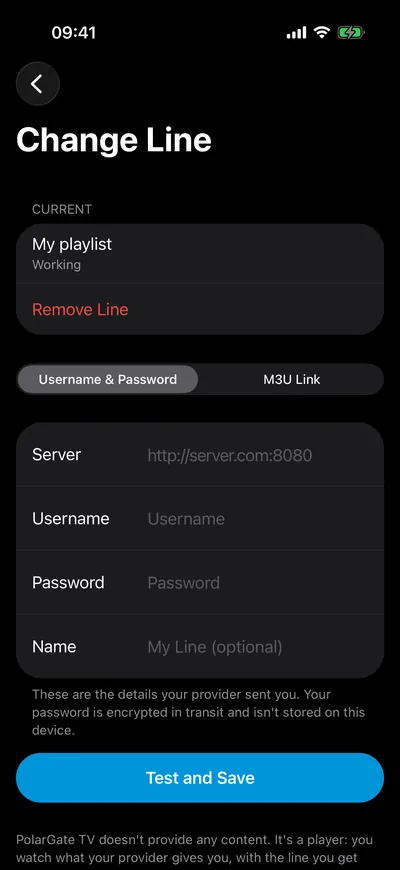
The first time, the “Your Line” screen opens on its own. At the top, choose “Username & Password” (Xtream) or “M3U Link”.
Enter your provider's details
With Xtream: “Server” (it starts with http:// or https://, for example http://server.com:8080), “Username” and “Password”. With M3U: the full “Link”. You can also give it a “Name”.
Tap “Test and Save”
The app tests the line before saving it. If it works, you will see “Done. We're already bringing in its catalog.” and your channels, movies and series arrive shortly after.
It is on all your devices
Sign in with the same account on your other devices and your line, favourites and My List will be there. To change it, go to Account and tap “Change Line”.
If you use an M3U link
For now, the app accepts M3U links from a compatible panel, the ones with get.php in them. If yours is not one, try the Xtream server, username and password from your provider.
Your details
Your line password is encrypted in transit and is not stored on the device. Each line can be on one PolarGate TV account only.
If something does not work
These are the messages the app can show when it tests your line, and what to do about each one.
- The panel says that username or password isn't valid.
- Copy the details again exactly as your provider sent them, with no spaces at the start or end.
- That line is no longer active. Renew it with your provider and try again.
- The line has expired. Only your provider can renew it.
- The panel isn't responding. Check the server address or try again later.
- Check the server, with its http:// and its port if it has one. If it is right, your provider's panel may be down.
- That M3U link isn't from a compatible panel. Try the server, username, and password instead.
- Switch to “Username & Password” at the top and use your Xtream details.
- That line is already on another PolarGate TV account.
- Sign in with the account that has it, or remove it there from Account.
If it still does not work, write to us at hello@polargate.ai.

Start with your playlist
Download PolarGate TV and add your playlist. The 7 days free trial arrives with the App Store and Google Play.
- App Store:
- Google Play:
- Mac: